The following document is the “Help” file with the instructions how to use *MASH. Please
note that, while entering the data, only a few fields are “Mandatory”. However, as more data you enter, the more
benefits you will get from the *MASH platform. A mandatory field would have “*” next to it.
1. Creating Your Profile
To create your profile:
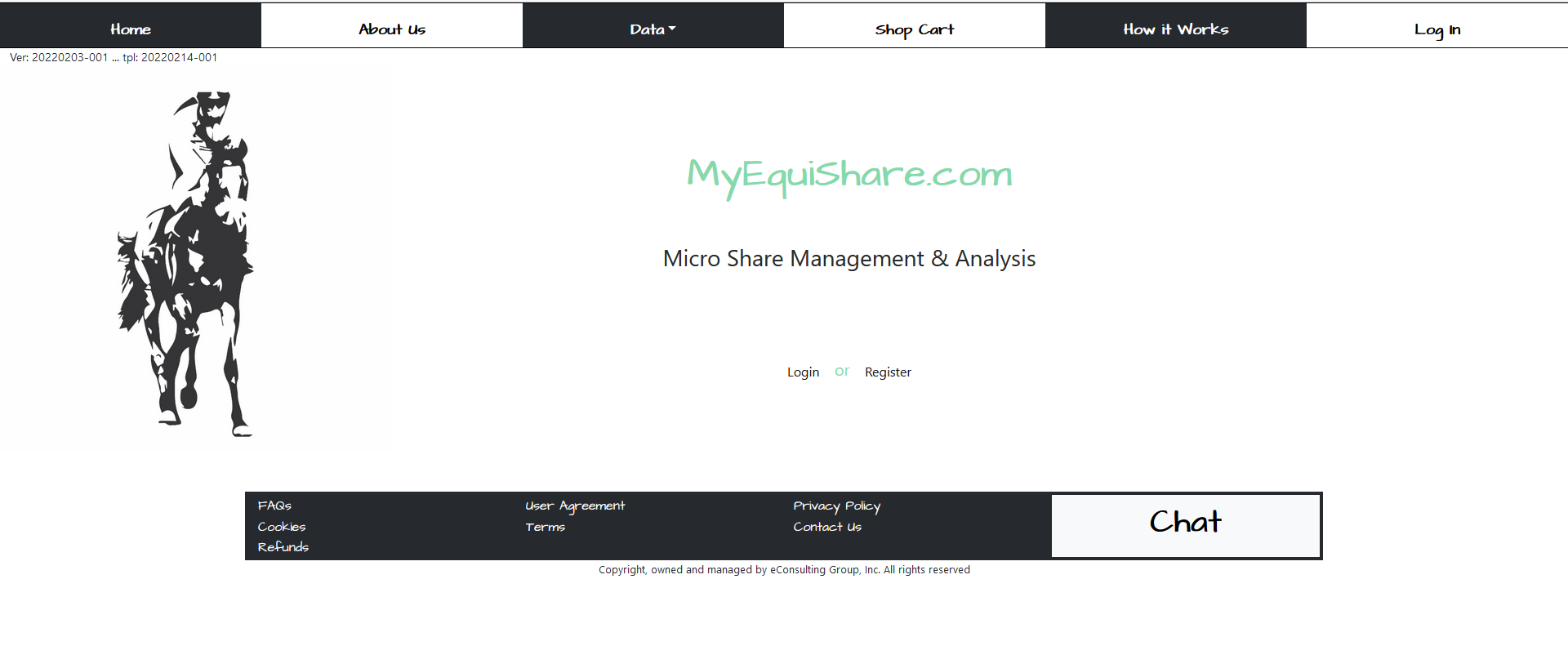
1.1 Click on “Register” button, located on the Home Page.
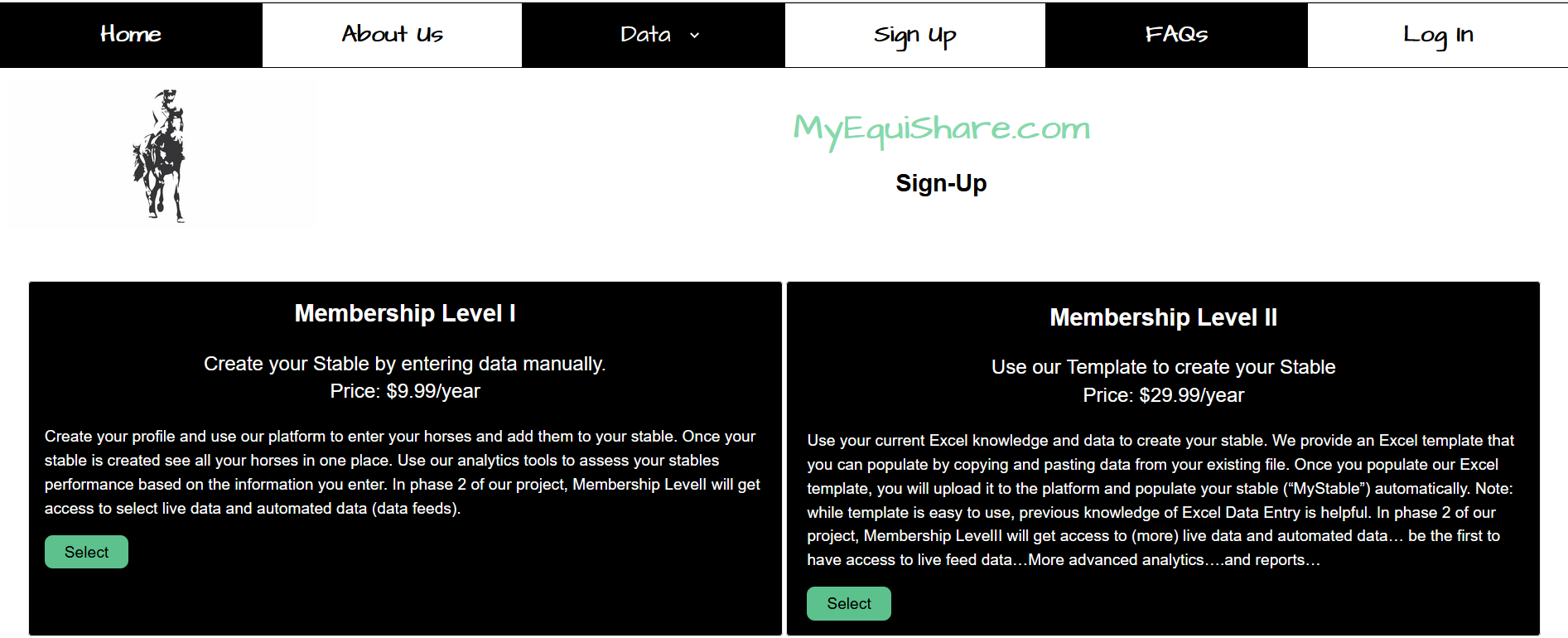
1.2 Select the membership level.
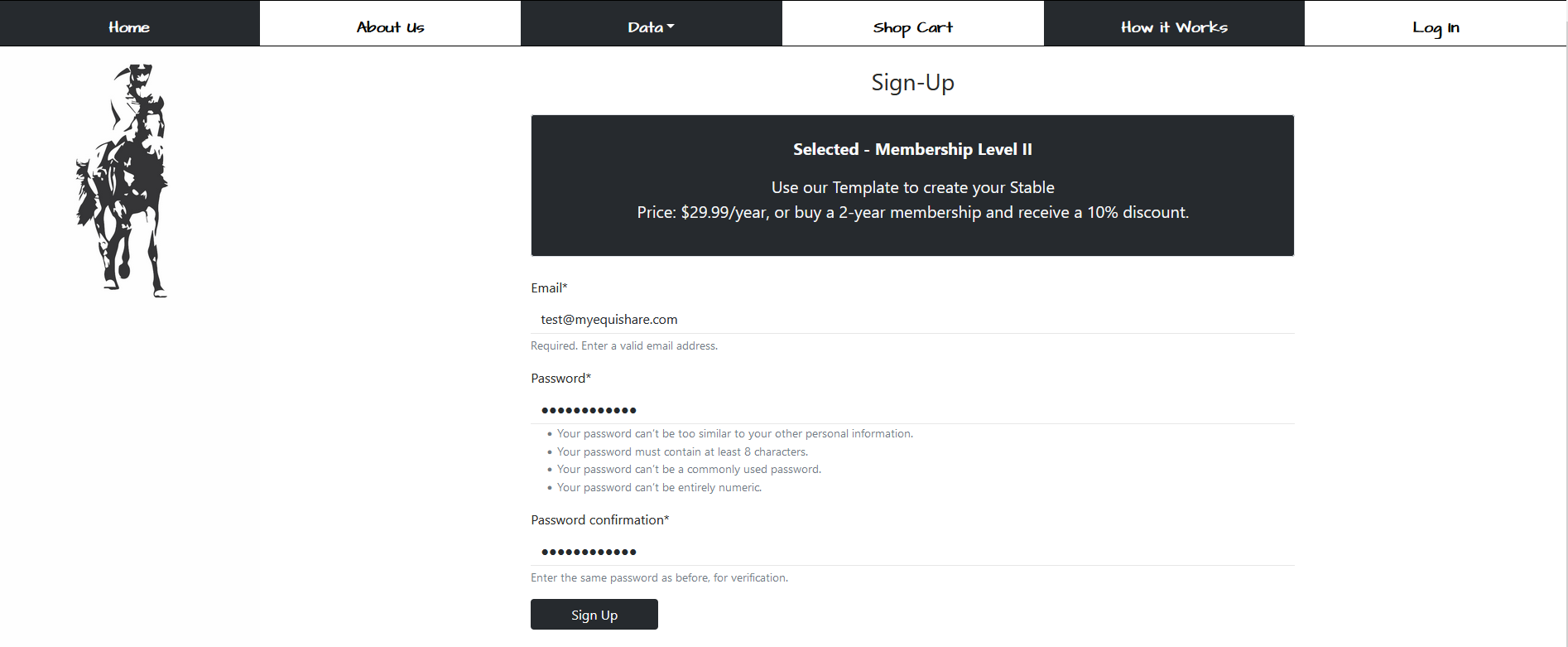
1.3 Enter your email and password information, and click “Sign Up” button. Once you
register, click on the “Log In” to enter the platform.
1.4 If you select Level II Membership, you have an option to upload your “My Stable” or
list of horses by using our template. To download the template, after you login:
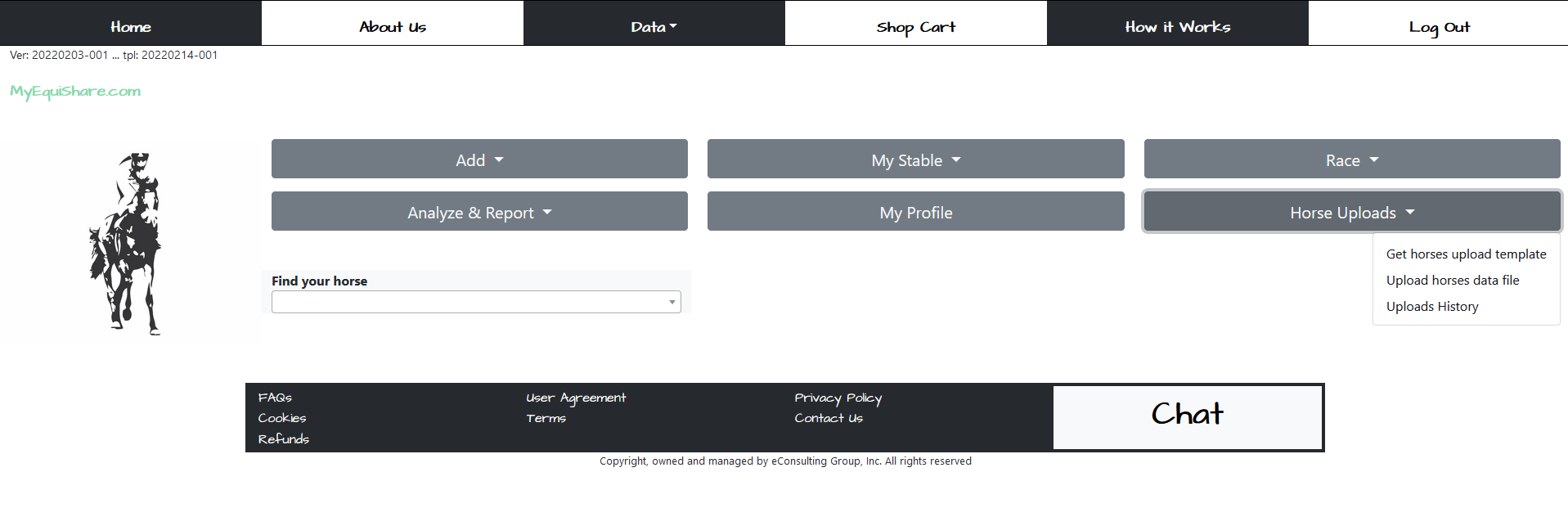
1.5 Click on the “Horse Upload”, third button of the second row, and select the “Get
Horses Upload template”. Your computer will ask you where you want to download the template. Please remember the
location.
1.6 Locate the template. It is an Excel file with the name “MyHorseData”.
1.6
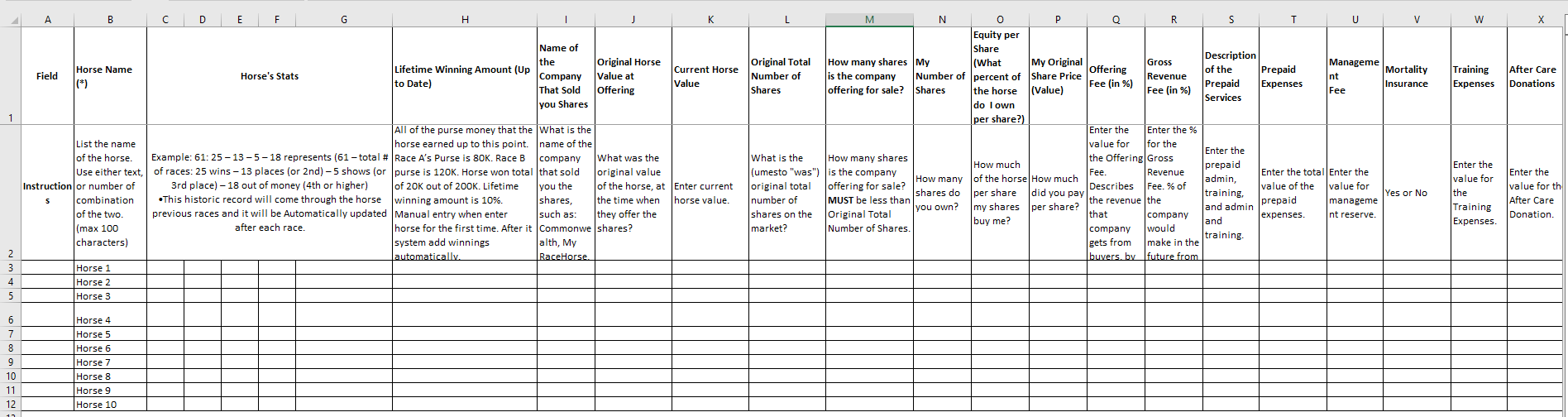
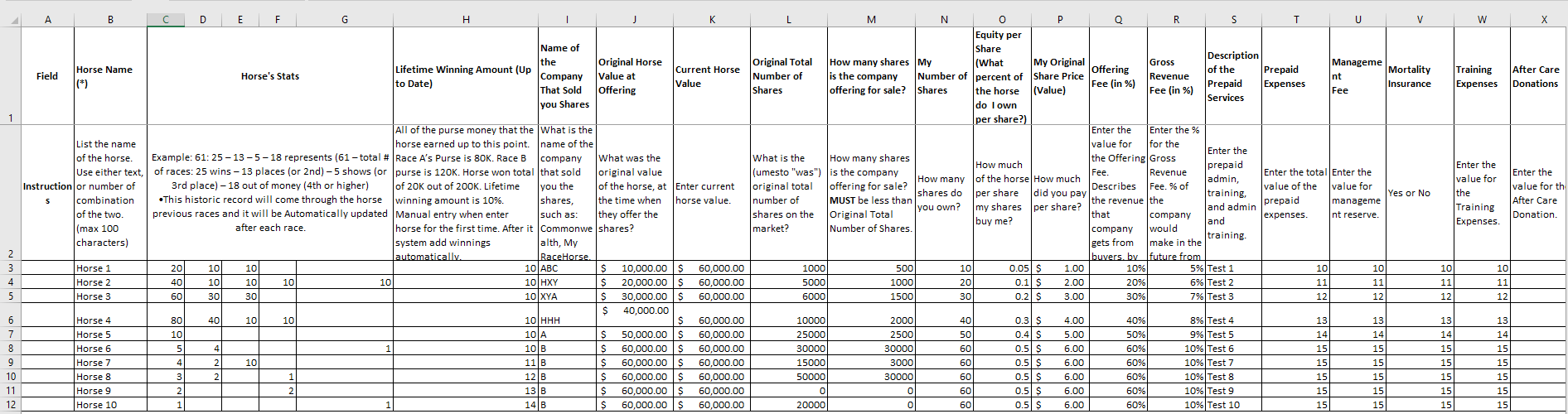
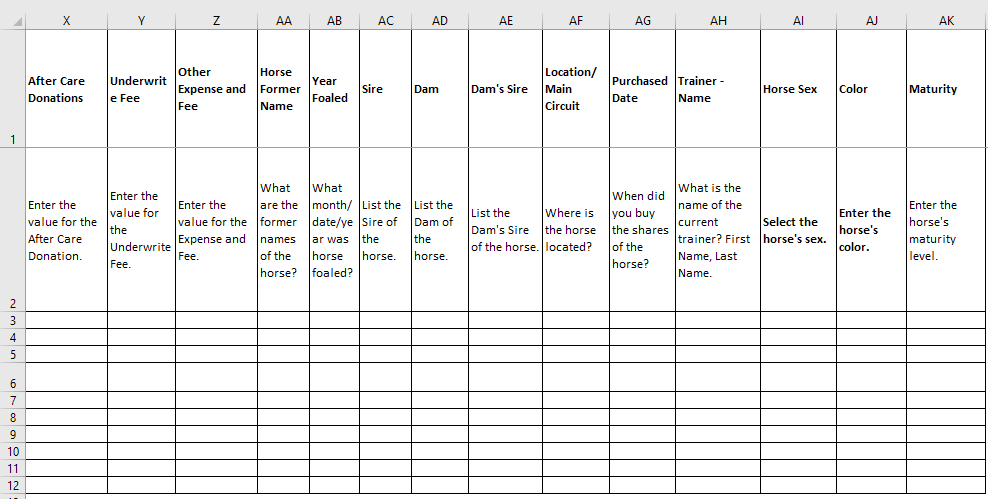
1.7 Open the file and fill up the fields with the information. Please make sure you enter
correct information in the correct fields. If you do not enter the correct information, you would not be able to
upload the template/data. You do not need to enter information in all of the fields. You can only enter the name
of the horses and finish your data entry manually, by editing horse profiles later. See below, examples of
“empty” and “complete” template.
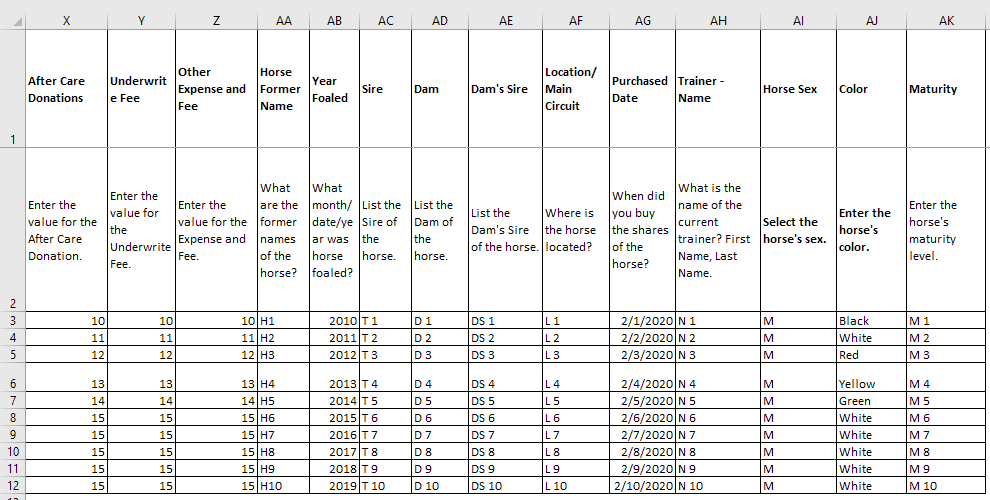
1.8 Again, please, make sure you enter correct information and format in the right fields.
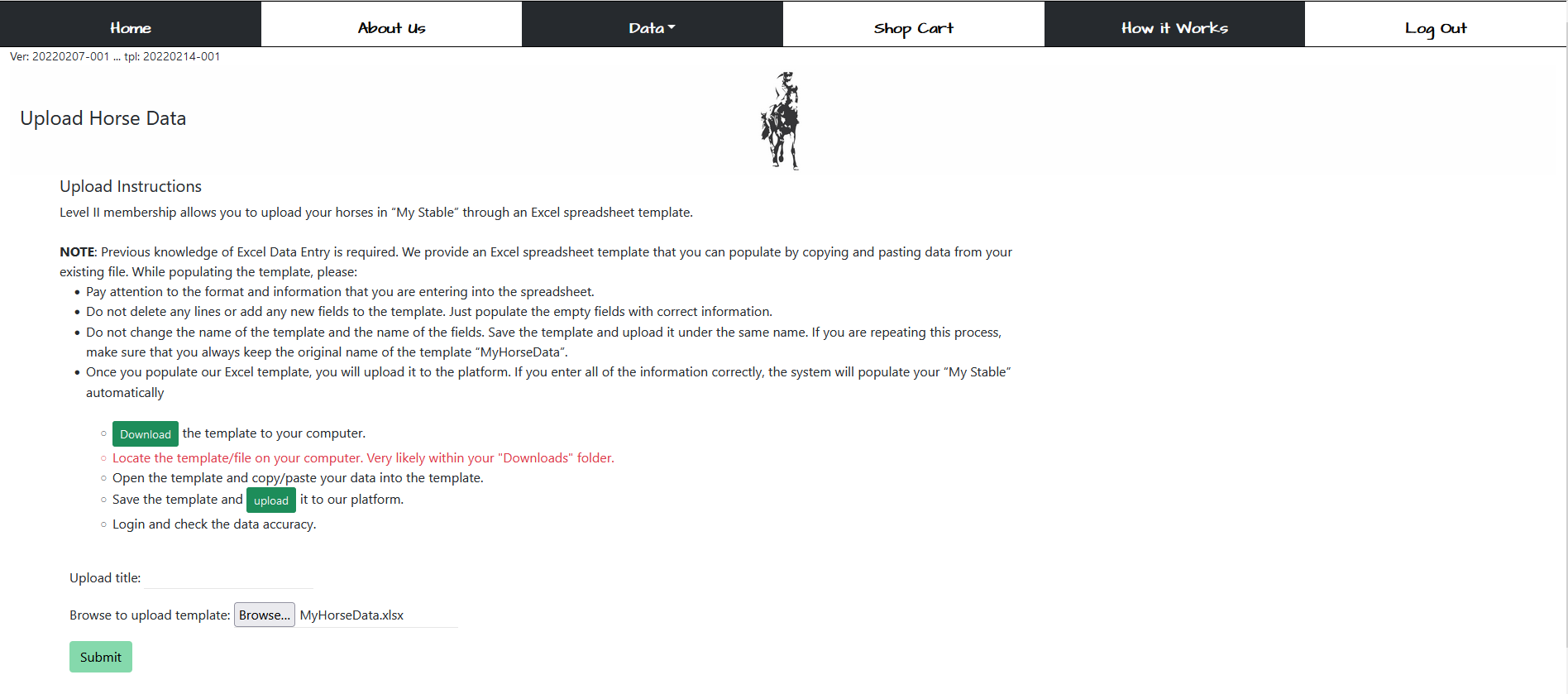
1.9 Once you finish with updating the upload template with the information about your
horses, go to “Horse Uploads”, click on the option “Upload Horses Data File”, click on “Browse” button, select
the file for upload and click “Submit”. If you enter incorrect information in your template and try to finish
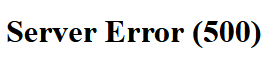
upload, you will get an error from the platform “Server Error 500”. Correct your template/data and repeat the
upload.
1.10 If your file upload was successful, you would see the “My Horse Data Upload” page.
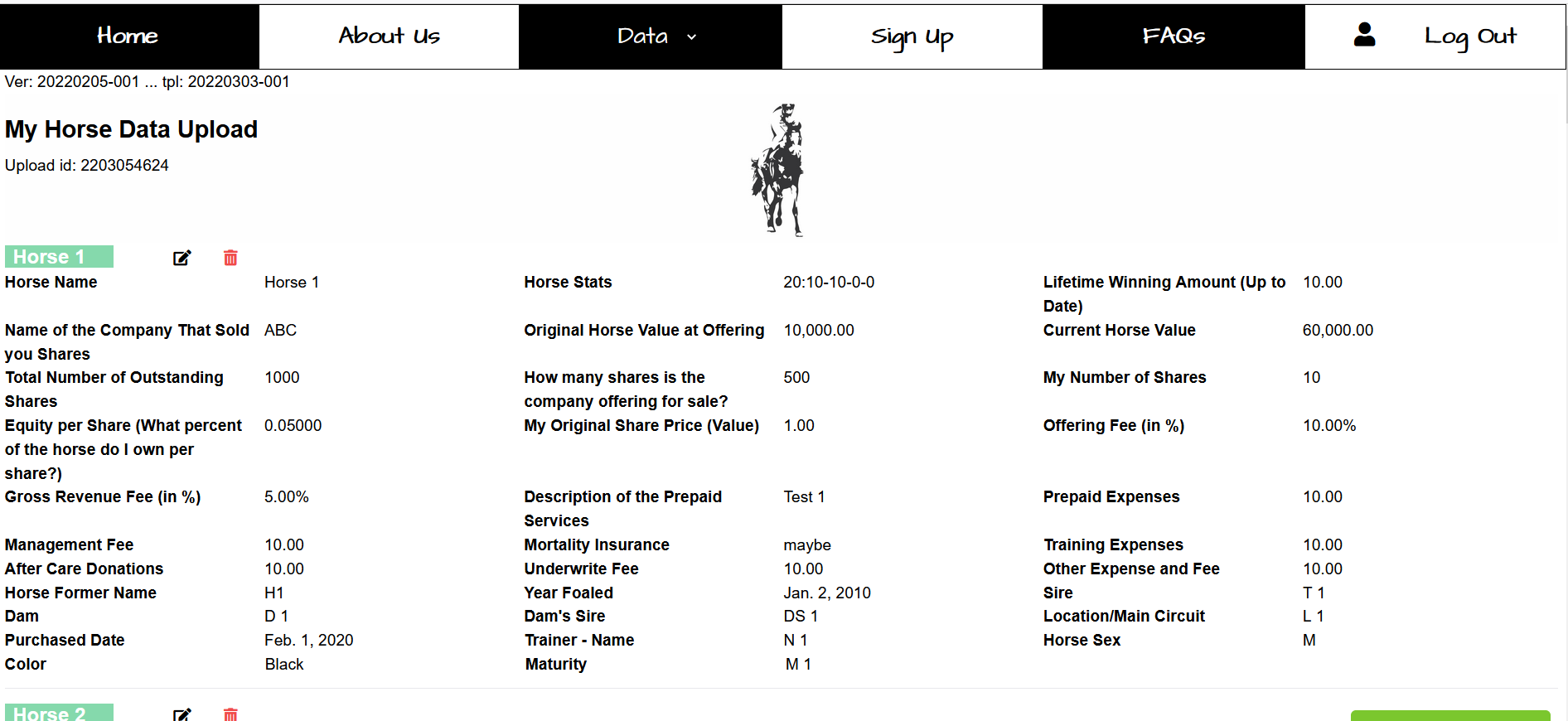
1.11 It Is a snapshot or a summary of each of the horses that you imported through the
template upload. “My Horse Data Upload” allows you to “EDIT” or “DELETE” each of your horses.
1.12 To view data of an individual horse, for example Horse 1, click on the green button
with the horse name on it (e.g. Horse 1)
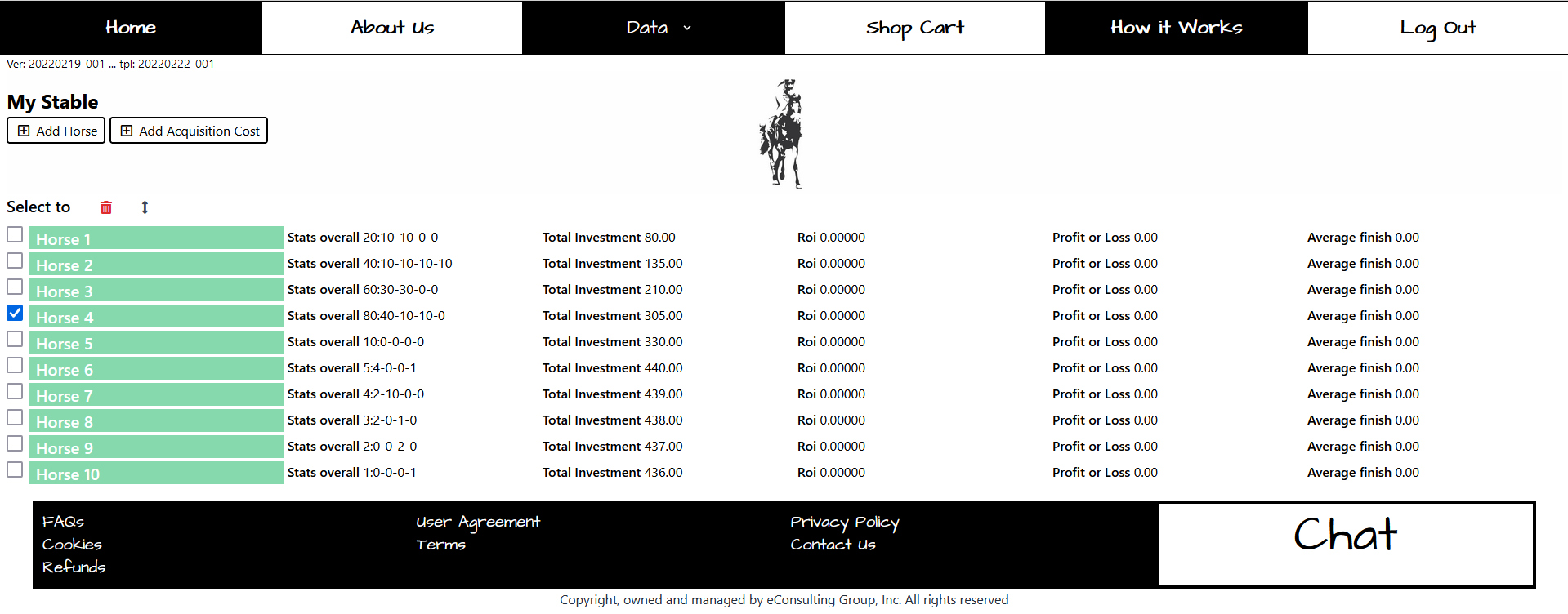
2. “Data/My Stable”
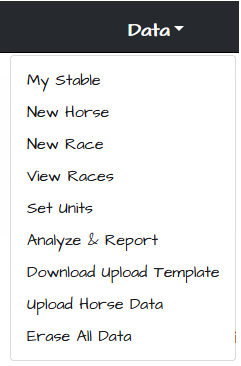
To see the full list of your horses, go to the header menu, “DATA”, and click on the
option “My Stable”.
2.1 Update “My Stable”
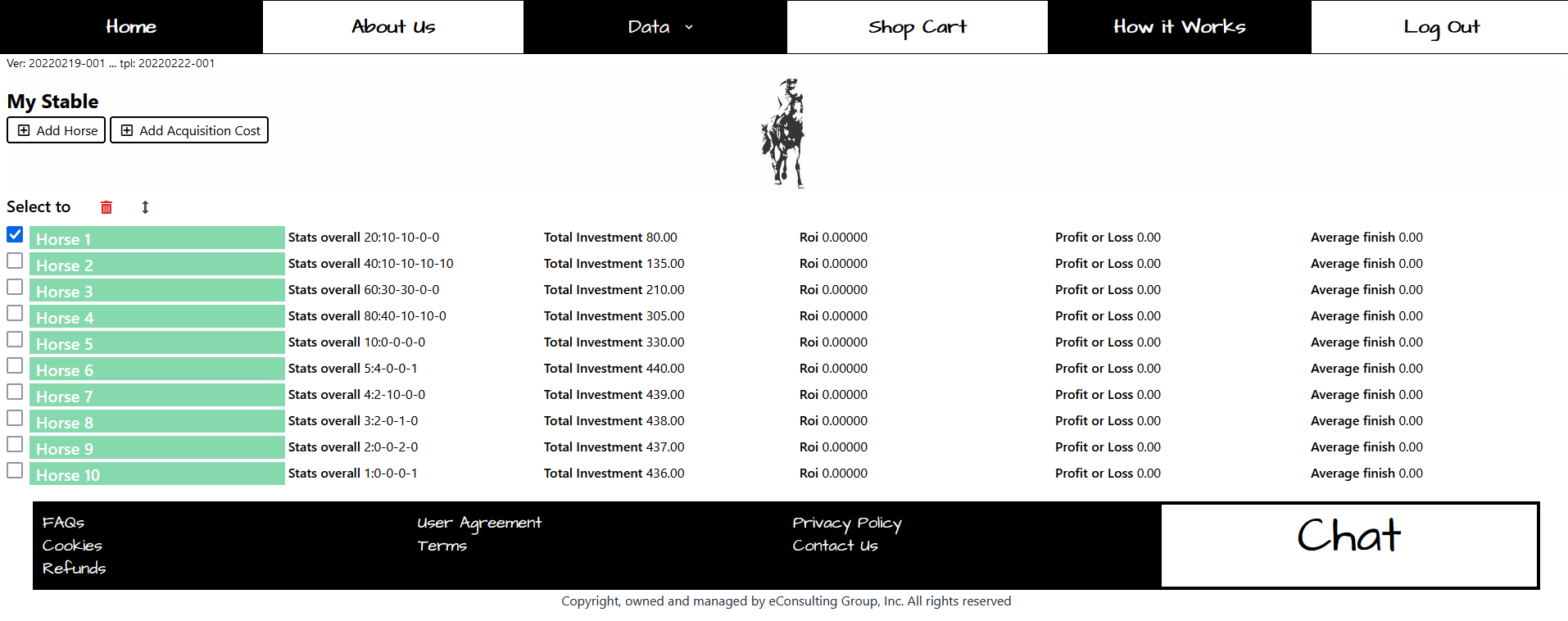
“My Stable” allows you to create, view, update, and delete information about your horses.
1. Select and/or click on the name of the horse, which profile you would like to open. In
our example we selected the Horse 1.
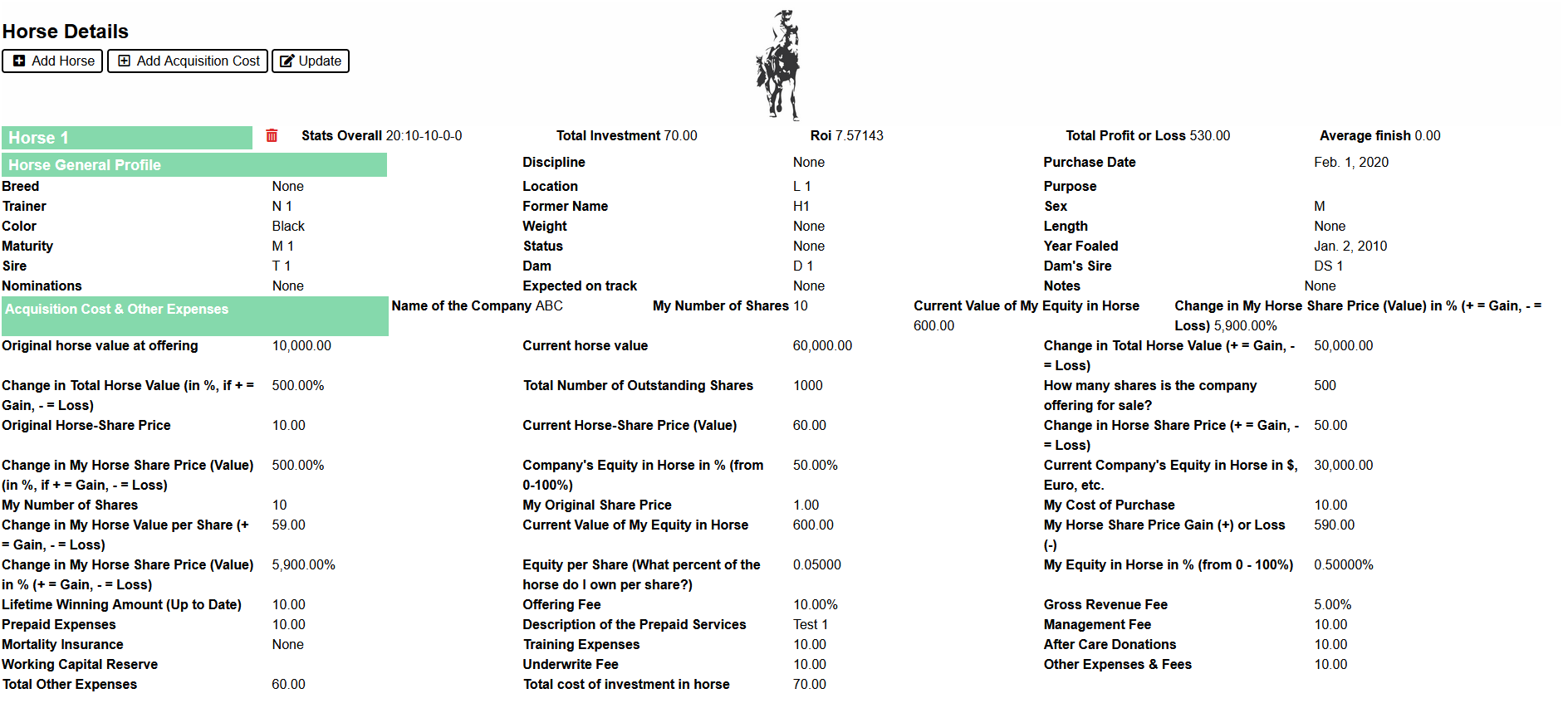
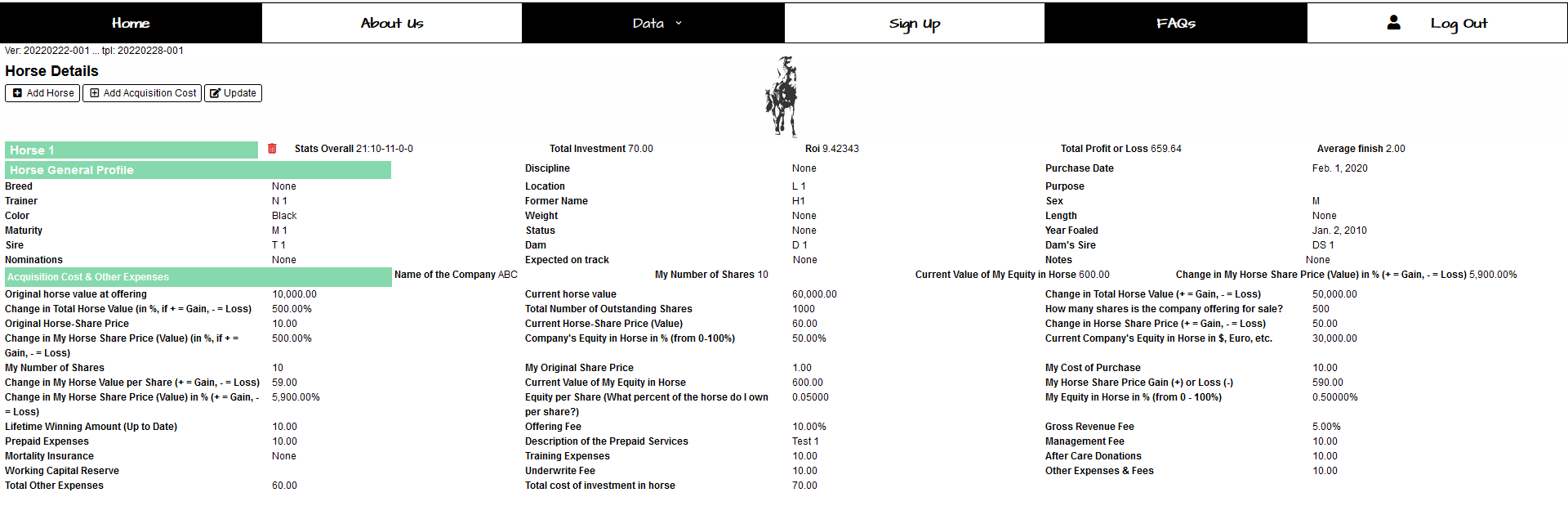
2.2 Once you enter the Horse’s profile, you can update the “Horse General Profile”
information and “Acquisition Cost & Other Expenses”. “Horse General Profile” section displays the information
related to the horse’s name, origin, age, etc. “Acquisition Cost & Expenses” display information related to the
cost of buying the horse’s share and cost related to the ownership of the horse.
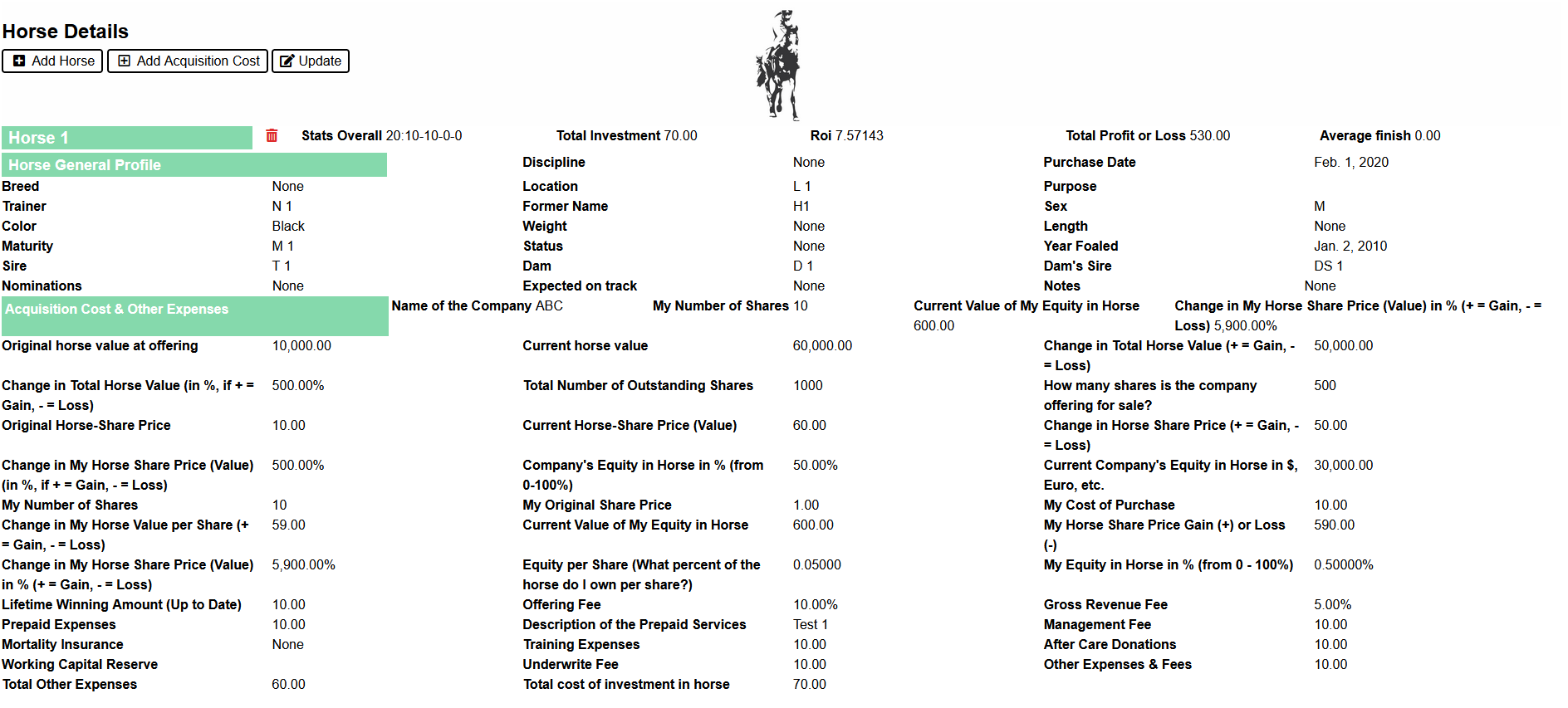
2.3 Please note that most of the fields are the formulas that will use the data that you
have provided in your template, during the upload. Thus, it is very important that you do your best to provide
accurate information that would be used to calculate your ROI, total cost of ownership, winnings, etc. The
following are the explanations for some of the fields in:
“Horse General Profile”:
“Acquisition Cost & Other Expenses”
- Name of the Company ABC, this field will display information related to the company that sold you the
horse’s shares.
- My Number of Shares 10, this field will tell you how many shares do you currently own.
- Current Value of My Equity in Horse 600.00, this field will tell you how much your current equity in horse
is.
- Change in Horse Share Price (Value) in % (+ = Gain, - = Loss) 5,900.00%, this field will tell you the change
in the horse’s share price.
- Original horse value at offering 10,000.00, this field will tell you what the horse original value now when
the horse’s shares were offered for sale.
- Current horse value 60,000.00, this field will tell you what your horse current value is.
- Change in Total Horse Value (+ = Gain, - = Loss) 50,000.00, this field will tell you about the total change
in the horse value, between original and current value.
- Change in Total Horse Value (in %, if + = Gain, - = Loss) 500.00%, this field will tell you about the total
change in the horse value, in %, between original and current value.
- Total Number of Outstanding Shares 1000, this field will tell you the total number of shares, originally
offered for sale.
- How many shares is the company offering for sale? 500, this field will tell you how many shares are owned by
your company.
- Original Horse-Share Price 10.00, this field will tell you the original price per share for your horse.
- Current Horse-Share Price (Value) 60.00, this field will tell you current price per share for your horse.
- Change in Horse Share Price (+ = Gain, - = Loss) 50.00, this field will tell you the change in the horse’s
share price, between original and current price per share.
- Change in Horse Share Price (Value) (in %, if + = Gain, - = Loss) 500.00%, this field will tell you the
change in the Horse Share price in %.
- Company's Equity in Horse in % (from 0-100%) 50.00%, this field will tell you the company equity in horse in
%.
- Current Company's Equity in Horse in $, Euro, etc. 30,000.00, this field will tell you the current worth of
the horse’s shares, sold/owned by the company who sold you the shares.
- My Number of Shares 10, this field will tell you how many shares you own.
- My Original Share Price 1.00000, this field will tell you how much you have paid per share.
- My Cost of Purchase 10.00, this field will tell you total of shares you have purchased.
- Change in My Horse Value per Share (+ = Gain, - = Loss) 59.00 this field will tell you the change between
the current share price and the original price that you have paid per share.
- Current Value of My Equity in Horse 600.00, this field will tell you current value of your shares.
- My Horse Share Price Gain (+) or Loss (-) 590.00, this field will tell you total gain or loss for the
horse’s shares that you own.
- Change in My Horse Share Price (Value) in % (+ = Gain, - = Loss) 5,900.00%, this field will tell you about
the total change in the horse’s share price in %.
- Equity per Share (What percent of the horse do I own per share?) 0.05000, this field will tell you how much
of the horse per share my shares buy me.
- My Equity in Horse in % (from 0 - 100%) 0.50000%, this field will tell you how much is my Equity in Horse in
%.
- Lifetime Winning Amount (Up to Date) 10.0, this field will tell you total, up to date winning amount that
horse has won. This number will not be used for any formula.
- Offering Fee 0.10000 This number will not be used for any formula.
- Gross Revenue Fee 0.05000 This number will not be used for any formula.
- Prepaid Expenses 10.00
- Description of the Prepaid Services Test 1
- Management Fee 10.00
- Mortality Insurance None
- Training Expenses 10.00
- After Care Donations 10.00
- Working Capital Reserve None
- Underwrite Fee 10.00
- Other Expenses & Fees 10.00
- Total Other Expenses 60.00, this field will tell you the total cost of the horse purchase, except cost
related to actual acquisition of the horse’s shares and cost related to the races.
- Total cost of investment in horse 70.00, this field will tell you how much did cost your to acquire shares
of the horse and expenses related to that transaction.
2.4 By clicking on “+ Add Horse”, you can add an
additional horse to “My Stable”.
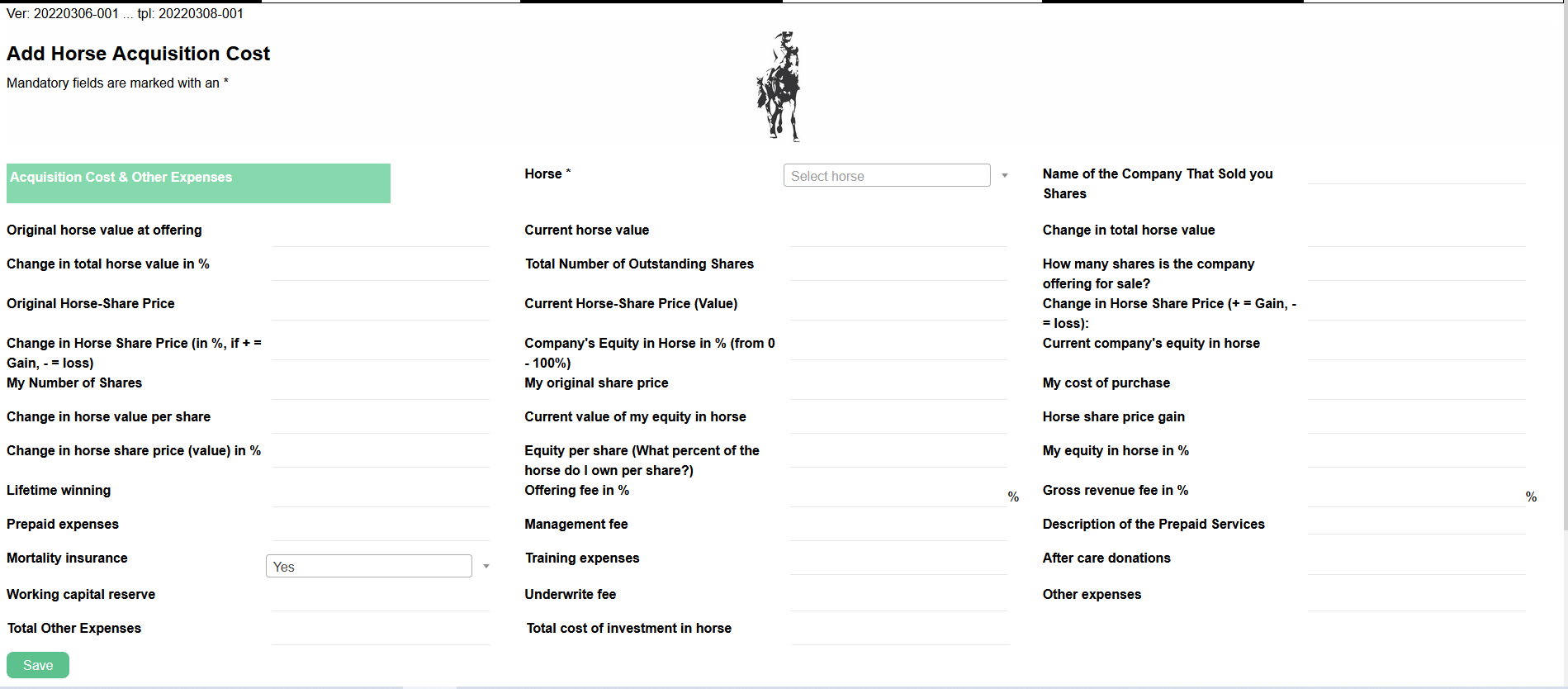
2.5 By clicking “Add Acquisition Cost”, you can add an
additional acquisition of the shares for the horse that is already in your stable.
3. Update a Horse
Once you access the horse’s profile, you can create, view, update, and delete information
about an individual horse.
4. Delete a Horse
To delete the horse, go to either “My Stable”, select the horse to delete, and then click
on “garbage can” icon to delete the horse or open the horse profile and click on “garbage can” option.
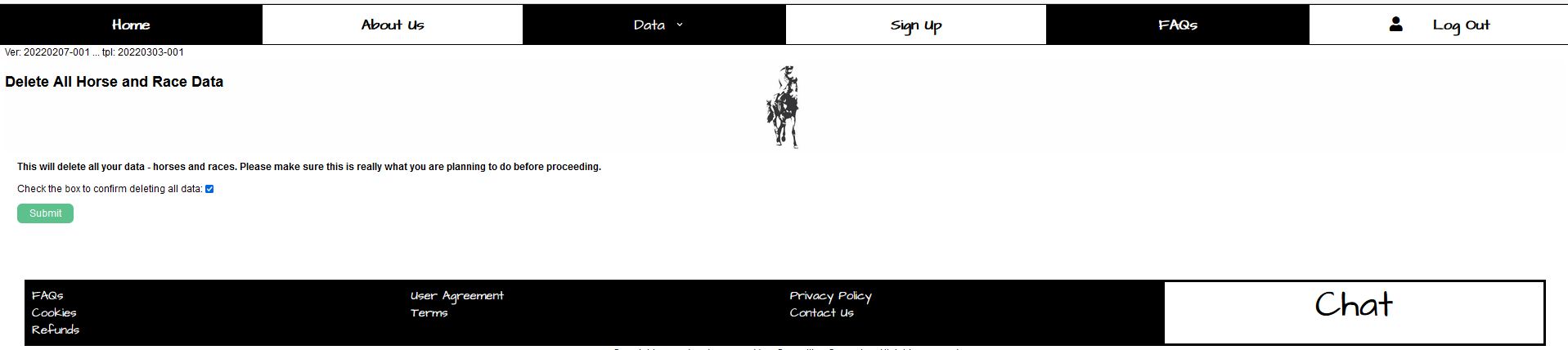
5. Delete Your Profile
You can delete your data or you can delete your profile and data, which means you will
terminate your membership with *MASH.
- Remove Data
- Delete Profile
6. Add a New Horse Race
To be able to calculate ROI on your horse’s micro shares, you need to enter the
information related to the horse’s races.
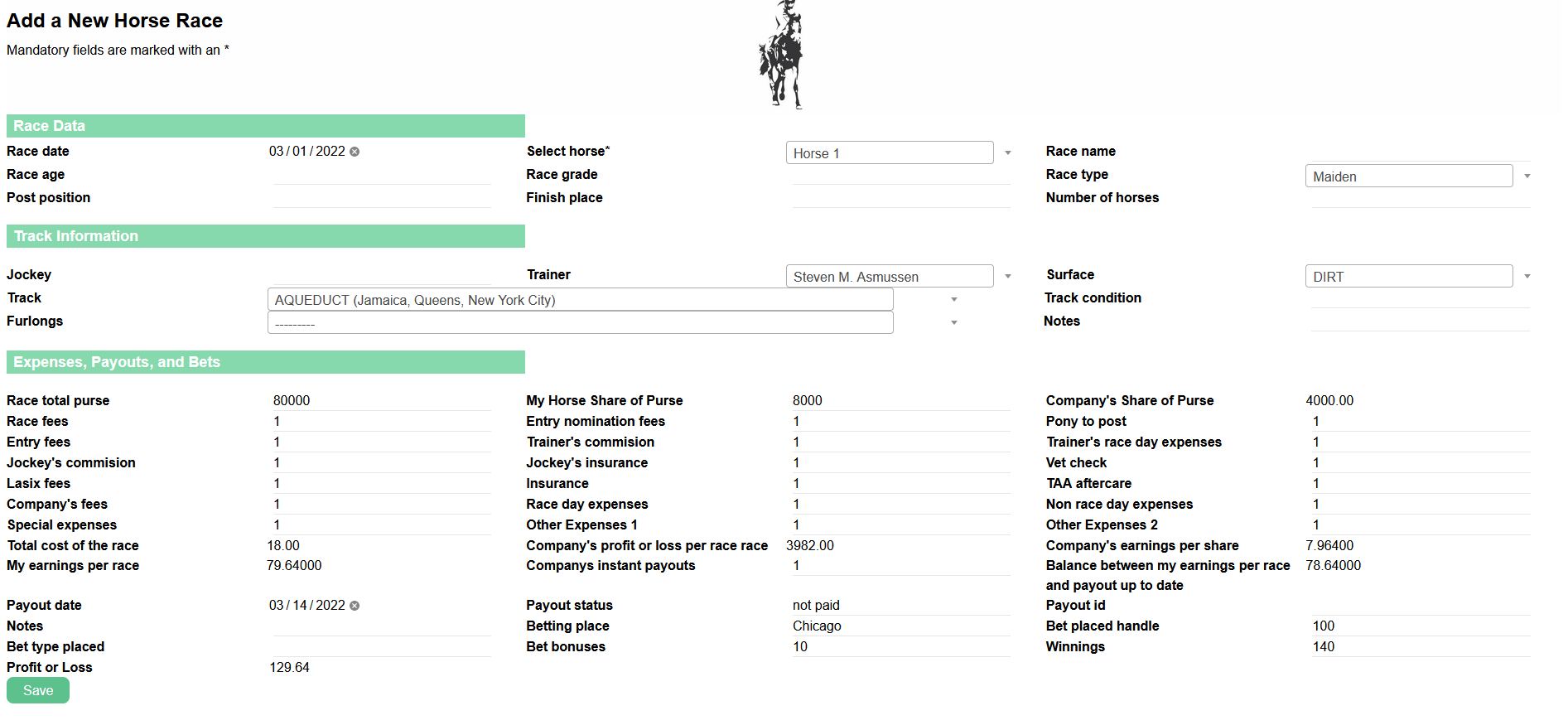
“Add a New Horse Race”
- Race date, enter the date of the race.
- Select horse*, mandatory field, select the horse from your stable.
- Race name, enter the name of the race.
- Race age, enter the race age.
- Race grade, enter the race grade.
- Race type, enter the race type.
- Post position, enter the horse position.
- Finish place, enter the horse’s finish place.
- Number of horses, enter the number of the horses in the race.
- Track Information, enter the track, where the race has occurred.
- Jockey, enter the name of the jockey.
- Trainer, enter the name of the trainer.
- Surface, enter the surface of the race.
- Track, enter the name of the track.
- Track condition, explain the track condition.
- Furlongs, enter the furlongs.
- Notes, enter the notes about the race.
Expenses, Payouts, and Bets, enter the
- Race total purse, what is the total purse of the race?
- Horse Share of Purse, what is your horse share of the purse”
- Company's Share of Purse, what is your company share of the purse?
Enter the race fees
- Race fees,
- Entry nomination fees
- Pony to post
- Entry fees
- Trainer's commission
- Trainer's race day expenses
- Jockey's commission
- Jockey's insurance
- Vet check
- Lasix fees
- Insurance
- TAA aftercare
- Company's fees
- Race day expenses
- Non race day expenses
- Special expenses
- Other Expenses 1
- Other Expenses 2
- Total cost of the race, will display the total cost of the race.
- Company's profit or loss per race, what is the company’s profit or loss per race?
- Company's earnings per share, what is the company’s earnings per race?
- My earnings per race, what is the your earning per race?
- Company’s instant payouts, did company pay you anything instantly?
- Balance between my earnings per race and payout up to date, how much company owns you?
- Payout date, what is the payout date?
- Payout status, what is the payout status?
- Payout id, what is the payout id?
- Notes, enter notes about the payout.
- Betting place, where did you bet?
- Bet placed handle, how much did you bet on?
- Bet type placed, what type of the bet did you play?
- Bet bonuses, was there any bet bonus?
- Winnings, how much did you win?
- Profit or Loss, formula will calculate you profit or loss per race.
6.1 After you enter and save the race for your horse, you would be able to see Profit or
Loss per Race.

If you go to Horse Details, you would be able to see Total Profit or Loss per Horse.
6.2 Update the race results
To update the race’s results, go to “Data/View Races”, select or click on the race that you
would like to update.

Once you select the “Race Update”, you will be able to modify data related to previously
saved races. This will affect your horse’s ROI and Profit & Loss.
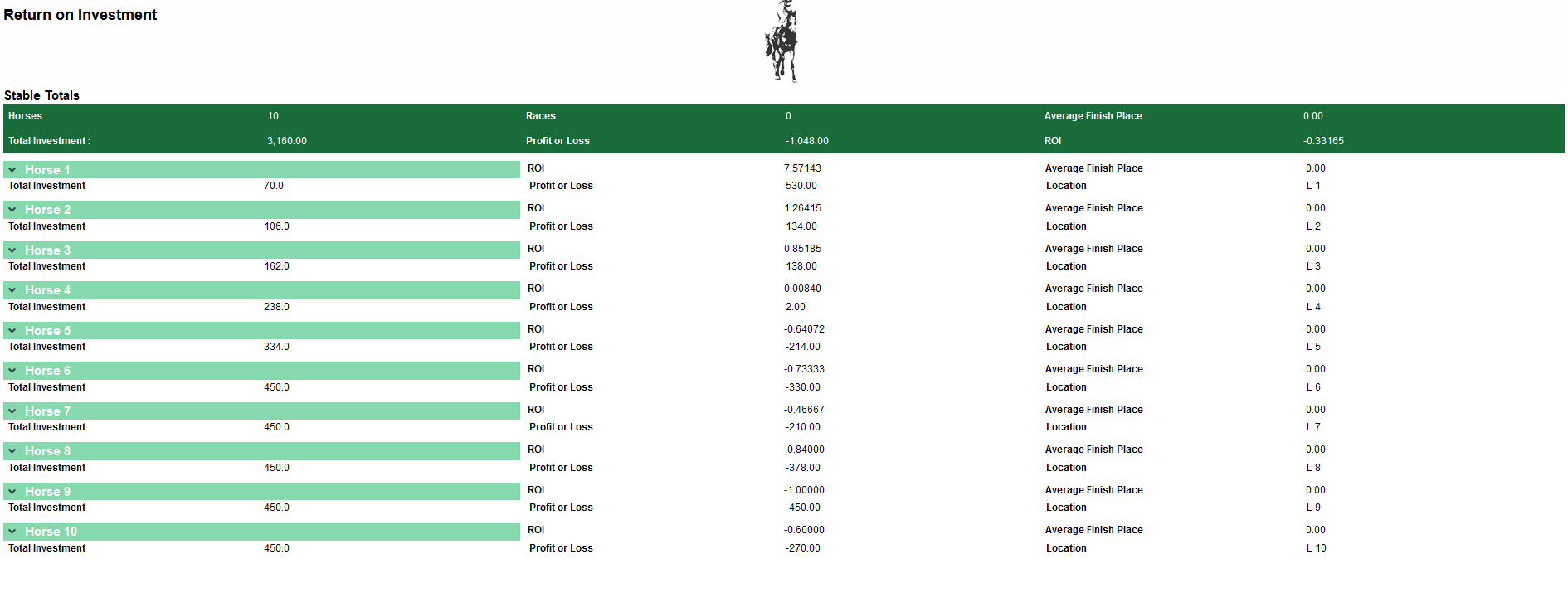
7. Run ROI Report
If you go to “Data/Analyze & Report”, you can see Total ROI for your stable and Total ROI
per each horse that you own.
8. Delete Your Profile
To delete your profile, go to “Data/Erase All Data”,
check the box and click on the “Submit” button.
Please feel free to contact us at
info@e-#####.com. We are working hard to build a great web experience for
our customers.